How to Add Tax to an Invoice (VAT, GST, Sales Tax)
Adding tax to an invoice sounds simple, but it trips up a lot of small businesses. Charge tax when you should not, and you overcharge clients and owe money you never had to collect. Fail to charge it when you should, and the tax authority still wants their share out of your pocket. Get the calculation or the layout wrong, and a client's accountant bounces the invoice back. This guide clears it up: when to add tax, how to calculate it, inclusive versus exclusive pricing, handling multiple rates, and how to show it clearly on the invoice.
The three most common consumption taxes are VAT (value added tax, used across the UK, EU, and much of the world), GST (goods and services tax, in Australia, New Zealand, India, Singapore, Canada, and others), and sales tax (the US state-level system). The mechanics are similar even though the names differ.
When should you add tax to an invoice?
You only add tax if you are registered to collect it. The trigger is usually a registration threshold or a business decision to register:
- UK VAT: register once turnover passes £90,000 (you can register voluntarily below that). Registered means you must charge 20% on standard-rated sales, and your invoice must carry the specific fields set out in our UK VAT invoice requirements guide.
- Australia GST: register at A$75,000 turnover, then charge 10%.
- US sales tax: based on "nexus" (a physical or economic presence) in a state, not a single national threshold. Rules vary by state.
If you are not registered, you do not add tax, and your invoice should not show a tax line at all. Charging tax you are not registered for is one of the errors we flag in our common invoice mistakes guide. Country-specific thresholds and rules are covered on our UK, Australia, and USA pages.
Even when you are registered, not everything is taxed the same way. Sales usually fall into four categories: standard-rated (the normal rate), reduced-rated (a lower rate on certain goods), zero-rated (0% but still reportable, such as many exports and, in some countries, basic food or books), and exempt (outside the tax entirely, like some financial or health services). Zero-rated is not the same as exempt, even though both show no tax collected, so knowing which category a sale falls into decides the rate you put on the invoice.
How to calculate tax on an invoice
The basic calculation is straightforward: tax is a percentage of the taxable amount (the subtotal after any discount).
Tax = Taxable amount × (tax rate ÷ 100)
Total = Taxable amount + Tax
For example, a $1,000 subtotal with 20% VAT:
- Tax = $1,000 × 0.20 = $200
- Total = $1,000 + $200 = $1,200
Apply tax to the subtotal after any discount, not before, since you only owe tax on what the customer actually pays. The order of operations on a correct invoice is: line items → subtotal → discount → tax → total. For where the discount sits, see our how to apply a discount on an invoice guide.
Tax-inclusive vs tax-exclusive pricing
This is where confusion creeps in. Your prices are either exclusive of tax (tax added on top) or inclusive (tax already baked into the price).
| Tax-exclusive | Tax-inclusive | |
|---|---|---|
| Price shown | Before tax | Tax already included |
| Common for | B2B (business clients) | B2C (consumers, retail) |
| Example ($100, 20%) | $100 + $20 = $120 | $120 total, $20 is tax |
| To find the tax in an inclusive price | n/a | $120 ÷ 1.20 = $100, tax = $20 |
For business clients, exclusive pricing is standard: show the net amount, then add tax as a separate line. For consumers, inclusive pricing is often expected or legally required, but your invoice should still show the tax amount even when the price includes it. To back the tax out of an inclusive price, divide by (1 + rate): a $120 inclusive total at 20% is $120 ÷ 1.2 = $100 net, so $20 is tax.
Handling multiple tax rates
Sometimes one invoice has items at different rates: standard-rated services plus a zero-rated or reduced-rate item, or in the US, taxable goods plus a non-taxable service. When that happens:
- Group items by tax rate, and show a subtotal and tax line for each rate.
- Never apply one blended rate across everything, since it hides the breakdown an accountant needs.
- In systems like India's GST, you may also split tax into components (CGST + SGST for local, IGST for interstate), each shown separately.
Most small invoices use a single rate, so this only matters when you genuinely mix rated and zero-rated or exempt items. When in doubt, one clear tax line per rate is the safe approach.
Selling to clients in other countries
Cross-border sales change the tax picture. When you sell services to a business in another country, the tax often shifts to the buyer under a reverse charge (common for B2B VAT in the UK and EU), so you invoice without adding your own tax but note that the reverse charge applies. Exported goods are frequently zero-rated, meaning 0% tax but still shown and reported. The rules depend on where you and the client are based, so confirm the place-of-supply treatment before you decide whether to add tax. Our how to invoice international clients guide covers the cross-border cases in detail.
How to show tax on the invoice
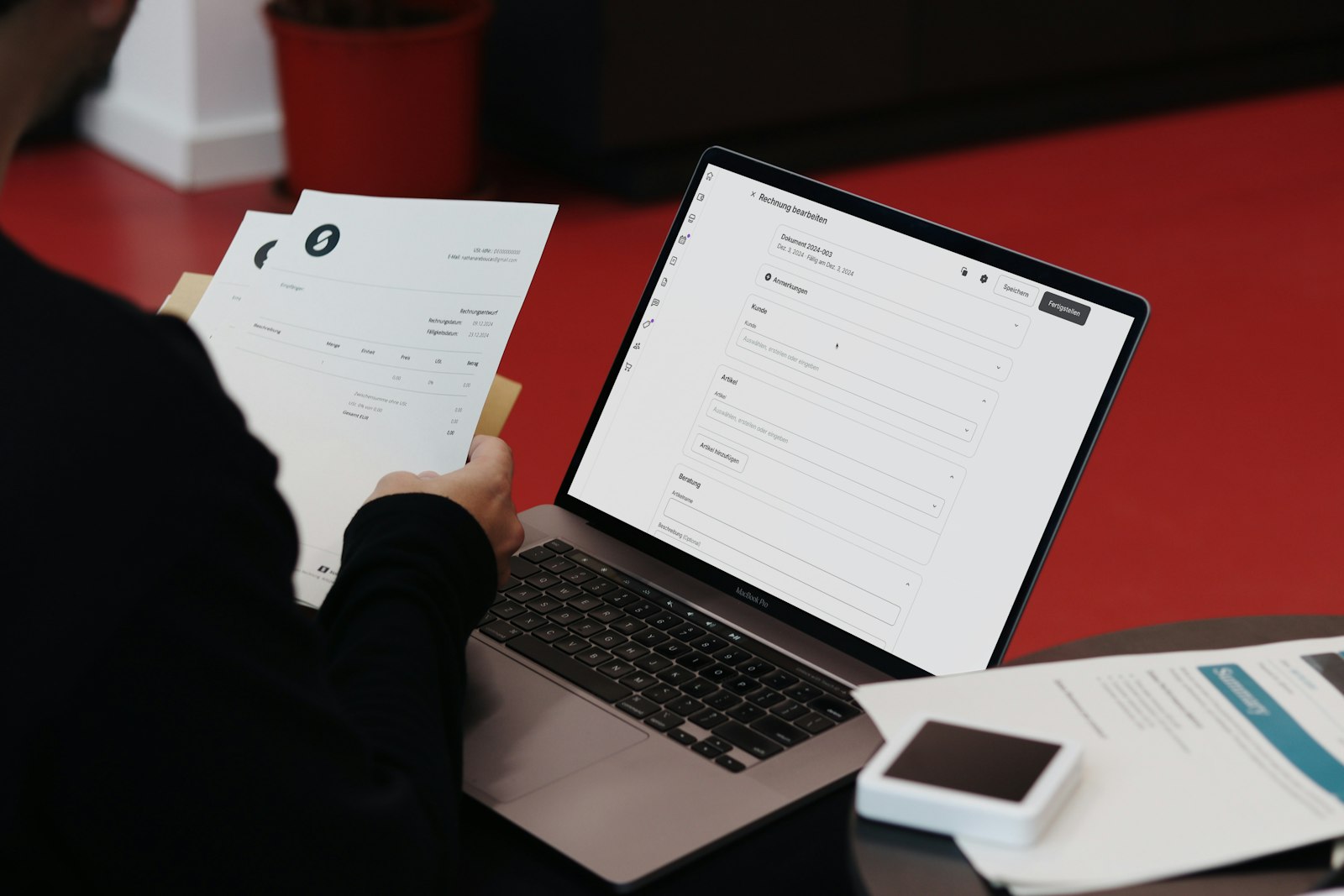
A compliant invoice shows tax so both the customer and the tax authority can see it clearly. Include:
- Your tax registration number (VAT number, ABN, GSTIN, etc.) where required.
- The tax rate applied (for example, "VAT 20%").
- The tax amount as its own line, separate from the subtotal.
- The gross total including tax.
Never fold tax silently into the total, because a business customer needs the tax figure to reclaim it. Showing the rate, the amount, and your registration number is what makes the invoice a valid tax invoice. For the full layout, see our invoice format and layout guide, and for the wider international picture our how to invoice international clients guide.
Common tax-on-invoice mistakes
- Charging tax when not registered, overcharging the client.
- Applying tax before the discount instead of after.
- Not showing the tax amount on a tax-inclusive price.
- Missing your tax registration number on the invoice.
- Blending multiple rates into one figure.
Add tax to your invoice in seconds
You do not need to do the maths by hand. Invoicara's free invoice generator lets you pick VAT, GST, HST, or a custom sales-tax rate, applies it to the subtotal after any discount automatically, and shows the tax as its own line with your registration number on a clean PDF. No sign-up, no watermark, free forever.
For the basics of building the whole invoice, see our complete guide on how to make an invoice, and to handle reductions correctly our how to apply a discount on an invoice guide. Register before you charge, calculate on the post-discount subtotal, show the rate and amount clearly, and your tax handling will pass any accountant's check.